
Simple Hosting
The Dangers of Keeping Old WordPress Plugins
The Dangers of Keeping Unused WordPress Site Plugins A WordPress site can look healthy on the surface, pages load, the admin feels normal, and uptime charts stay green.
Published August 17, 2024 · Updated July 25, 2026
A WordPress site can look healthy on the surface, pages load, the admin feels normal, and uptime charts stay green. Yet the
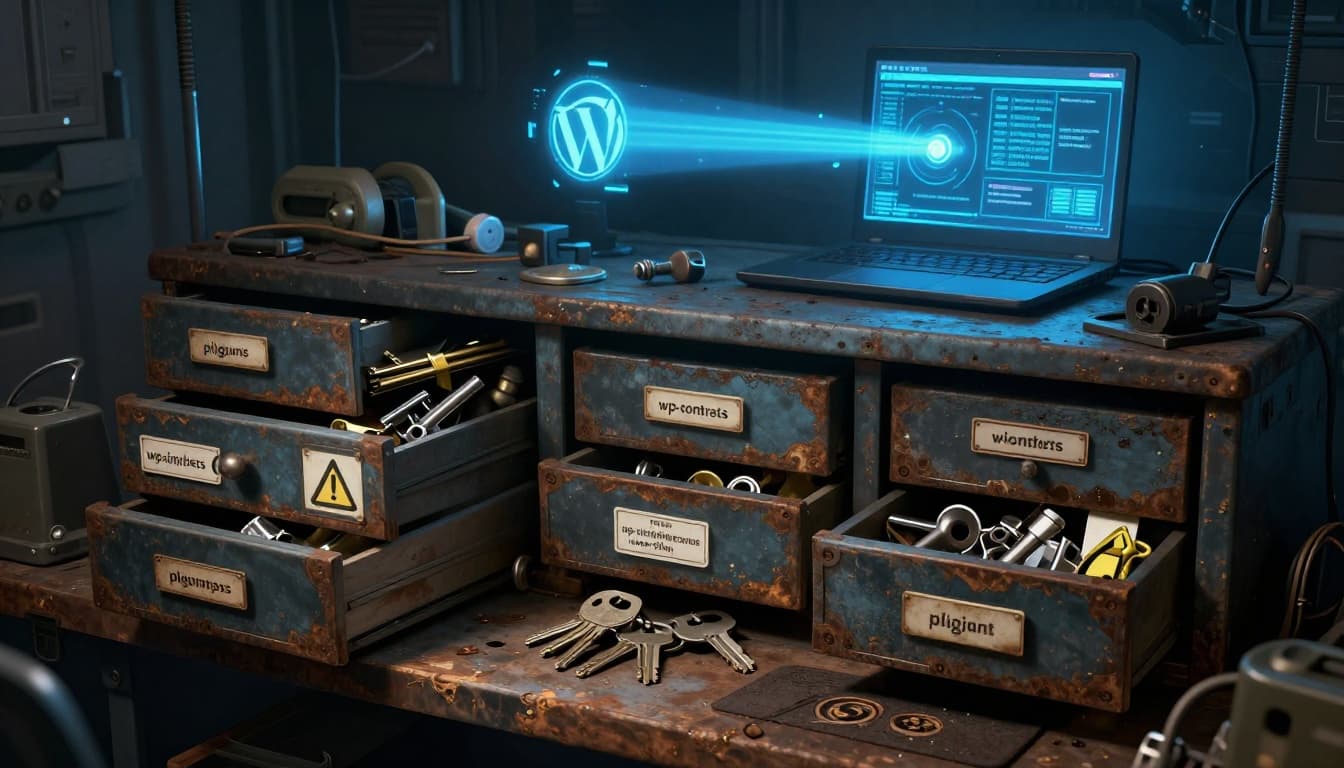
Unused plugins visualized as a cluttered toolbox with "spare keys" nearby.
Plugin and database bloat shown as physical clutter around a server rack.
A developer reviewing plugins with staging and backup in view.
/wp-content/plugins folder often tells a different story. Old experiments, replaced features, and "we might need it later" installs sit there like forgotten boxes in a closet.
Here's the problem: deactivated isn't deleted. The files remain on disk, and in many cases they're still reachable over the web. That quietly expands your attack surface, even if the plugin never runs in WordPress again. Attackers don't guess, they scan, looking for known plugin bugs and predictable paths.
Keeping unused plugins is like leaving old keys under the doormat. You may not use them anymore, but someone else can.
Unused plugins visualized as a cluttered toolbox with "spare keys" nearby.
Why unused WordPress plugins are a real security risk, even when they're inactive
Inactive plugins feel harmless because WordPress stops loading their hooks. However, real compromises often start outside the normal plugin boot path. Attackers hunt for weak files, outdated libraries, and exposed endpoints, then they poke until something answers.Deactivated is not removed, and direct file access can still be exploited
Deactivating a plugin mostly flips an internal switch. WordPress stops calling its activation hooks and stops loading it on every request. But the plugin folder and its contents stay right where they were. That matters because many plugin files sit in web-accessible paths. If a plugin includes a poorly protected script, an upload handler, or an AJAX endpoint that doesn't correctly verify capability and nonce, an attacker may hit it directly. In those cases, the WordPress "inactive" state doesn't help, because the vulnerable file can still execute when requested. Common patterns that show up in incident reports include:- Direct-access PHP scripts that assume
ABSPATHis defined or that WordPress bootstrapped first. - File upload flaws where a script accepts a file and stores it in a predictable location.
- Exposed assets and endpoints that reveal versions, paths, or sensitive data, which then help chain an attack.
If you don't need a plugin, removing its files is the only way to make its web paths disappear.
Old vulnerabilities pile up, and attackers scan for them nonstop
Plugin vulnerabilities age like milk, not wine. Once a bug becomes public, it spreads fast. Proof-of-concept code gets shared, scanners add signatures, and botnets go looking for the same file paths across millions of sites. Recent security reporting underscores the pattern. Data published in 2025 showed 92% of successful WordPress breaches came from plugins and themes, not WordPress core. That's not because core is perfect, it's because plugin sprawl creates more chances to miss an update. The same research noted attackers begin probing within hours of a patch release, while many site owners take days to update. That time gap is where mass exploitation thrives. You'll also see the term abandoned plugin used a lot. In practice, it means the plugin hasn't been updated for a long time, often because the maintainer moved on. In 2024 alone, 1,614 plugins were removed from the WordPress repository, and 1,450 of those had serious or medium vulnerabilities reported. Removal from the repository doesn't remove it from your server. A neglected plugin list turns into a timeline of old mistakes. Each leftover folder becomes one more "does this site still have X version?" check for automated scanners. The more leftovers you keep, the easier you make that scan. For developers, the simplest defense often starts with infrastructure basics too. If you're tightening security and patching habits, solid managed WordPress hosting can help by pairing performance with monitoring and support, but it can't compensate for plugin clutter you never remove.The hidden costs, performance drag, and maintenance headaches you invite
Security gets the headlines, but unused plugins also waste time in quieter ways. They slow down upgrades, muddy debugging, and make routine ops feel like walking through a storage room with the lights off. Plugin and database bloat shown as physical clutter around a server rack.
More code to audit, more surprises during core and PHP updates
Even inactive plugins influence maintenance because they raise the number of things you must account for during change. When you bump PHP, update WordPress core, or refresh a theme stack, forgotten plugin folders become unknown variables. Some common "surprise" sources:- Autoloaded options left behind in
wp_optionsthat still load on every request. - Scheduled cron events that keep firing, even after you stop using the UI.
- Old tables and custom post types that affect queries or migrations.
- Leftover files that mimic must-use behavior, such as dropped-in loaders, custom drop-ins, or bundled libraries that other code includes.
Bloat builds up in the database and filesystem, and troubleshooting gets slower
Plugin "uninstall" varies widely. Some plugins clean up well. Others leave breadcrumbs everywhere. Even when the plugin is inactive, those leftovers can keep affecting you. Database leftovers usually hurt the most:- Tables that inflate backups and slow restores.
- Transients that clutter storage and confuse debugging.
- Autoloaded rows that increase memory use and slow admin screens.
- Cron hooks that spam logs or execute expensive tasks.
A safe cleanup routine developers can follow without breaking the site
Cleaning plugins shouldn't feel like pulling random wires from a live panel. With a calm process, you can reduce risk without causing downtime.A developer reviewing plugins with staging and backup in view.
Do a quick plugin inventory and decide what to delete, replace, or keep
Start with a plain inventory. Don't trust memory, because teams change and features drift. For each plugin, make a quick call: delete, replace, or keep. A simple decision checklist helps:- Does the site use its shortcodes anywhere (posts, widgets, templates)?
- Does custom code call its functions, hooks, or classes?
- Does it power a payment, email, auth, or API integration?
- When was the last update, and does it have an active maintainer?
- Can modern WordPress features replace it now (block editor, native embeds, core APIs)?
- Is there a safer alternative, or a lightweight snippet you can own?
Remove plugins the right way: backup, test, delete, then clean leftovers
Use a sequence you can repeat every release cycle:- Take a backup you can restore quickly (files and database).
- Clone to staging that matches production as closely as possible.
- Deactivate the plugin in staging and run a fast smoke test (front-end, login, checkout, forms, cron tasks).
- Delete the plugin, don't just leave it inactive.
- Re-test, then deploy the change to production during a low-risk window.